 Fotaro
How to Film Yourself and the View at the Same Time on Android
Front and back camera in one photo or video: the picture-in-picture shot travel vloggers and reaction creators use, and how to get it right.
You are standing in front of a waterfall, a stadium or your friend's wedding stage. You want the view, but you also want your face in the shot: your reaction, your words, proof you were there.
A selfie hides the view behind your head. Filming the view leaves you out. The answer is a dual camera shot: the back camera films what you see, the front camera films you, and both end up in one picture, usually with you in a small window in the corner.
This guide explains the formats, which phones can film both at once, and how to make a dual shot that looks deliberate rather than accidental.
Three layouts and when to use them
- Small selfie. The view fills the frame and you sit in a small window. This is the classic travel and reaction format: the scene is the star, you are the guide.
- Small back view. You fill the frame and the view is the small window. Good for talking to camera while showing what you are talking about, such as a dish, a product or a street.
- Half and half. Two equal halves, like a podcast or a video call. Good for conversations, before-and-after moments, or when both sides matter equally.
Pick the shape for where it is going
The shape of the final file matters more than people think:
- Portrait (9:16) for Reels, Shorts, TikTok and Stories.
- Square (1:1) for feed posts that look the same everywhere.
- Landscape (16:9) for YouTube and for watching on a TV or laptop.
Decide before you shoot. Cropping a dual shot afterwards usually cuts off either your face or the view.
Can your phone film with both cameras at once?
Some Android phones can run the front and back cameras at the same time; many cannot, because of how the camera hardware is wired. A good dual camera app handles both cases:
- On phones that allow it, both cameras are live together. You see the view and yourself on the screen at once, and both are filmed at the same moment.
- On other phones, the app films one side first and then the other. For a photo, it takes the view and then you a moment later. For a video, it films the view first, then plays it back while you film yourself reacting, so your words still match what is on screen.
Both give you one finished photo or video. The second way just takes a few seconds longer.
Tips for a dual shot that looks good
- Light your face. The view is often bright and you are often in shadow. Turn so the light falls on your face, or the small window will look dark next to the scene.
- Hold the phone a little higher than your chin. It is more flattering, and the back camera points slightly down at the scene, which usually frames it better.
- Keep the small window away from the action. If the view has something important in the bottom-right corner, put your window in another corner.
- Steady the phone with both hands and move slowly. In a dual shot, shake affects both pictures.
- Say something. A dual shot without words is just a busy photo. Point out what we are looking at, react, or tell a tiny story.
- Keep videos short. Ten to thirty seconds is enough for most moments, and short clips are easier to cut together later.
How to do it in Fotaro
Fotaro is a free photo and video editor for Android with a Dual camera built in.
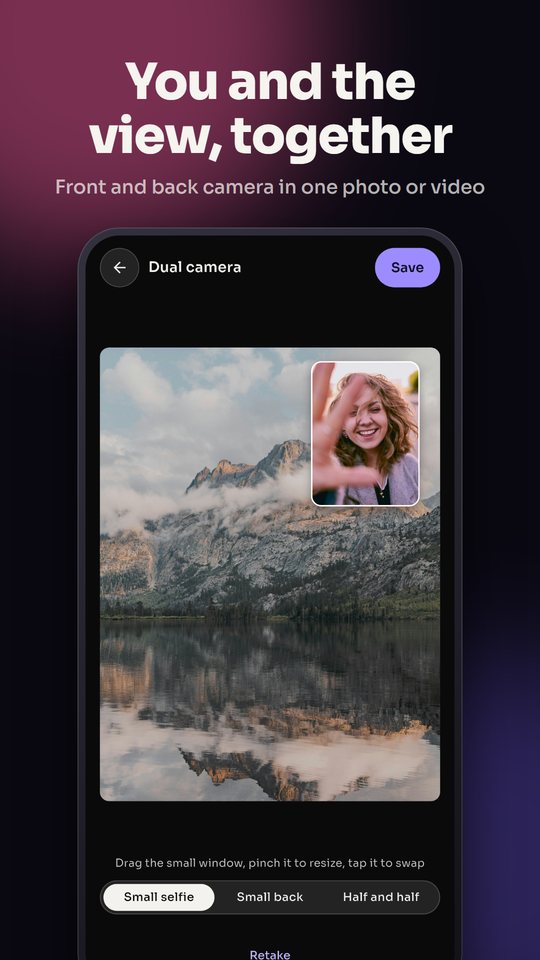
- Open Fotaro and tap Dual camera on the Home screen.
- Choose the layout: Small selfie, Small back or Half and half.
- Tap Format in the top bar to choose Portrait, Square or Landscape. The shape you pick is kept all the way to the saved file.
- Take a photo or a video.
- If your phone can run both cameras together, both are live on the screen and are taken at the same moment.
- If it cannot, Fotaro takes the view first and then turns to you. For video, the view plays back while you film yourself.
- Before saving, drag the small window where you want it, pinch it to change its size, or tap it to swap which side is big. You can do this even after the shot.
- Save. The finished photo or video goes to your gallery, ready to post.
You can then open the video in Fotaro's video editor to add music, captions from what you said, or a film look.
Ideas for dual shots
- Travel: "This is the view from the top", with your face in the corner.
- Food: the dish big, you tasting it small.
- Concerts and matches: the stage or pitch, and your reaction.
- Reviews and unboxings: the product big, you explaining it.
- Family moments: your child blowing out candles, and your face watching them.
- Walking tours: half and half, the street and you talking.
The short version
Choose the layout and the shape before you shoot, light your face, keep the small window out of the action and say something. If your phone can film both cameras at once, great; if not, filming one side after the other gives the same finished result.
About Fotaro
Fotaro is a free photo and video editor for Android from Toolverse Labs: Dual camera puts you and the view in one photo or video, in portrait, square or landscape, and both cameras film together on phones that allow it. No account, no watermark, and editing runs on your phone.
Fotaro is free on Android: no account, no watermark, and editing runs on your phone.
Get it on Google Play