 Fotaro
How to Extract Audio from a Video and Clean Up the Voice on Android
Save the sound of a video as an audio file, then take the background noise out of speech, all on your phone.
Sometimes the sound is the part you want. A lecture you filmed, a voice note sent as a video, a speech at a wedding, a song your child sang, an interview for a podcast. You want just the audio: smaller, easier to share, and playable in the background.
And often that audio has a problem: a fan, traffic, wind or the hum of a crowd behind the voice.
This guide covers both jobs: turning a video into an audio file, and cleaning up the voice so it is easy to listen to.
Part 1: video to audio
Every video file carries its sound as a separate track inside it. "Extracting" the audio means copying that track out into its own file. Done properly, nothing is re-recorded and the quality stays the same.
Which format to choose:
- M4A (AAC) is small and plays almost everywhere, including WhatsApp and most phones. A good default.
- MP3 is the most widely supported format. Choose it for older players and car stereos.
- WAV is uncompressed and large. Choose it only if you will edit the audio further in a studio app.
Tips:
- Trim first. Cut away the silence at the start and the end before you save. People skip audio that starts with ten seconds of rustling.
- Keep the original quality unless the file is too large to send.
- Name the file clearly, for example "Grandpa speech, Diwali 2026", so you can find it later.
Part 2: cleaning up the voice
Background noise makes speech tiring to listen to. There are two kinds:
- Steady noise: fans, air conditioners, traffic hum, wind, electrical hiss. This is the easiest to remove.
- Changing noise: other people talking, music, dishes clattering. This is harder, because it can sound like speech.
Modern voice cleaning uses a model trained on thousands of hours of speech. It finds the voice and lowers everything that is not a voice. The best results come when:
- The voice is clearly louder than the noise to begin with
- One person speaks at a time
- The recording is not heavily distorted (clipped) by being too loud
What to expect: a clear improvement on fans, wind and traffic; a good improvement on crowds; less on music, because music can contain voices. If the voice is very faint under loud noise, cleaning cannot recover what was never captured.
Tips for recording cleaner sound next time
- Get the phone close to the speaker. Half a metre away is far better than three metres. Distance is the biggest factor in noise.
- Turn off the fan and close the window if you can.
- Point the bottom of the phone at the speaker for audio-only recordings; that is where the main microphone usually is.
- Avoid hard, empty rooms. Echo is hard to remove. Curtains, sofas and carpets help.
- Protect from wind. Turn your back to the wind, or shield the phone with your hand.
How to do it in Fotaro
Fotaro is a free photo and video editor for Android with sound tools built in. Clean voice runs on your phone, so your recordings are not uploaded.
Save the sound of a video:
- Open Fotaro and tap Video to audio in the Tools section of the Home screen.
- Pick the video.
- Drag the ends of the bar to trim the start and end.
- Under Save as, choose M4A, or Original quality to keep the sound exactly as it is in the video, and save.
Clean up the voice:
- Tap Clean voice on the Home screen and pick a video or a sound file.
- Fotaro listens for a voice and lowers the background noise around it, on the phone.
- Play it back, then save. For a video, you can save it as a video with the cleaned voice, or as the sound alone.
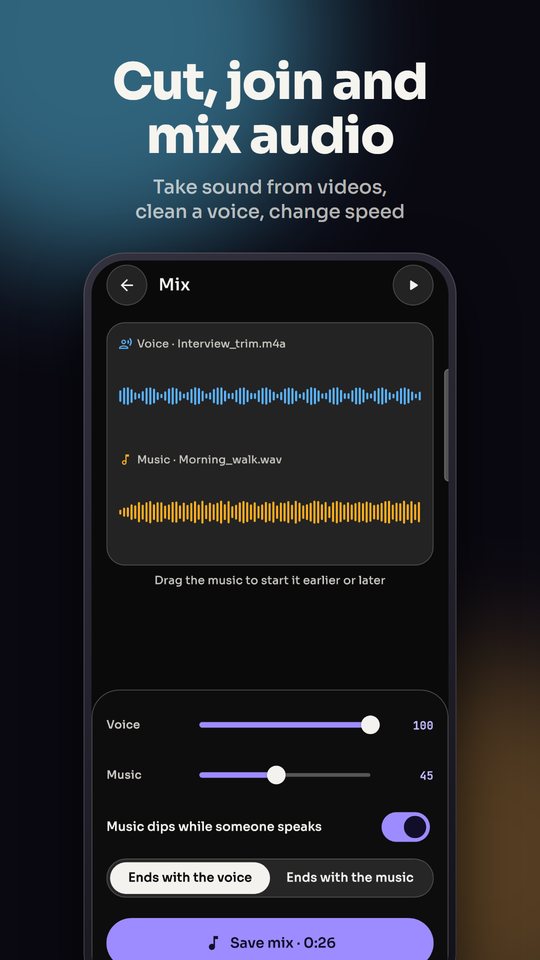
Do more with the sound: Sound tools lets you trim, join clips with crossfades, mix a voice over music that dips while someone speaks, even out the loudness, add fades, change speed or pitch, and record your voice. Fotaro opens MP3, M4A, WAV, FLAC, OGG and the sound of any video.
Ideas
- Lectures and classes: save the audio to listen to on the bus.
- Interviews for a podcast: clean the voice, even the loudness, add intro music.
- Family speeches and songs: keep them as small audio files that are easy to share in a family group.
- Voice-overs for Reels: record, clean, and put it under your video.
The short version
Copy the sound track out of the video as M4A or MP3, trim the edges, and clean the voice if there is a fan, traffic or wind behind it. Next time, get the phone closer to the speaker; it beats any cleaning.
About Fotaro
Fotaro is a free photo and video editor for Android from Toolverse Labs: Video to audio saves the sound of any video, and Clean voice takes background noise out of speech on your phone. No account, no watermark, and editing runs on your phone.
Fotaro is free on Android: no account, no watermark, and editing runs on your phone.
Get it on Google Play