 Fotaro
How to Fix Blurry Photos on Your Android Phone
Why phone photos come out soft, what can actually be rescued, and how to sharpen and upscale a photo without a computer.
You take a photo that looked perfect on the screen, open it later, zoom in, and it is soft. The faces are mushy, the text on the sign is unreadable, and the moment is gone.
The good news: a lot of "blurry" photos can be made clearly better on the phone itself. The honest news: not all of them. This guide explains which kind of blur you have, what to try first, and how to sharpen or upscale a photo in a minute.
First, find out what kind of blur it is
Not all blur is the same, and the fix depends on the cause.
- Soft but steady. The whole picture is a little soft, edges are not doubled. This is often a cheap lens, a smudged lens, digital zoom or heavy compression from a chat app. This kind improves the most.
- Small or low resolution. The photo looks fine on the phone but falls apart when you crop or print it. An old photo, a screenshot or an image saved from WhatsApp is often like this. Upscaling helps here.
- Motion blur. Things are smeared in one direction, or edges are doubled. Your hand or the subject moved. This can be improved a little, rarely fixed completely.
- Missed focus. The background is sharp and the face is not. The detail was never recorded. Editing can make it look crisper, but it cannot invent eyelashes that were not there.
Zoom in to 100% on the face or the most important part and look for a moment. You will usually know which group your photo belongs to.
Before you edit: get the best copy you have
The biggest gain often comes before any editing.
- Look for the original. If the photo came through WhatsApp, Instagram or Messenger, it was compressed on the way. Ask the sender for the original file, or check Google Photos for a full-quality backup.
- Check for a burst or a second shot. Many phones keep several frames. One of them may be sharper.
- Do not screenshot a photo to save it. A screenshot lowers the quality and adds the phone's screen size as a limit.
Then make a copy and edit the copy, so the original stays untouched.
Step 1: sharpen gently
Sharpening increases contrast along edges. A little makes a photo look crisp; too much makes halos, crunchy skin and grainy skies.
A good rule: zoom in to 100%, raise sharpening until it looks right, then pull it back by a third. Photos for a small phone screen need less sharpening than you think.
Two settings help more than plain sharpening on many photos:
- Clarity adds contrast in the midtones, which makes textures like hair, fabric and bark stand out.
- Dehaze removes the grey veil from photos taken through a window, in fog or against the light. A hazy photo often reads as "blurry" when it is really low contrast.
Step 2: upscale small photos with AI
If the photo is small, sharpening alone makes it look worse, because there are not enough pixels to work with. This is where AI upscaling helps.
An AI upscaler has learned what edges, skin, leaves and text usually look like. It makes the photo larger and fills in plausible detail, so a 1000-pixel-wide photo becomes 2000 pixels wide and looks cleaner than if you had simply stretched it.
What it does well:
- Old phone photos and small images from chats
- Soft photos of people, pets, food and places
- Photos you want to crop or print larger
What it cannot do:
- Read text that is completely smeared
- Fix a face that is a blur of a few pixels
- Undo strong motion blur
Treat the result as an improvement, not a restoration, and always compare it with the original at the same size.
How to do it in Fotaro
Fotaro is a free photo and video editor for Android, and it has two tools for this job. Both run on your phone, so the photo is not uploaded anywhere.
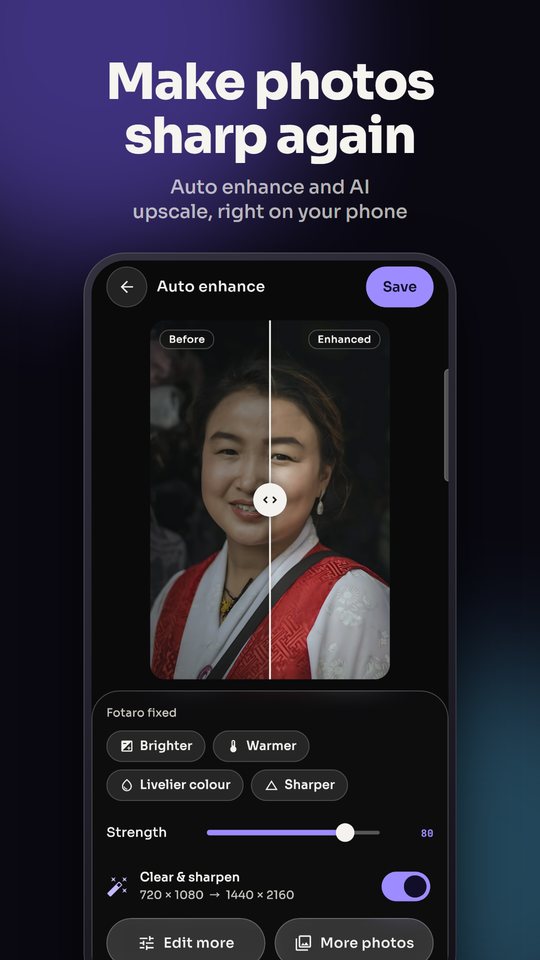
For a photo that is a bit soft:
- Open Fotaro and tap Auto enhance on the Home screen.
- Pick your photo. Auto enhance looks at what this photo needs (brighter, warmer, livelier colour, sharper) and fixes only that.
- Use the strength slider to choose how much. Hold the photo to see the original and compare.
- Save. The result is a new copy; your original stays in your gallery.
For a photo that is small or blurry:
- In Auto enhance, pick the photo and choose Clear & sharpen.
- It upscales the photo to twice its width and height with AI, on the phone. On an older phone this can take a little while; you can watch the progress. (If the photo is already large, Fotaro tells you there is nothing to gain.)
- Compare with the original, then save.
You can then fine-tune in the editor: a touch of clarity, dehaze if it was taken through glass, and a crop now that you have more pixels to spare.
A few habits that prevent blur next time
- Wipe the lens. A fingerprint on the lens is the most common cause of soft, glowing photos. Use your T-shirt before an important shot.
- Tap to focus on the face. Then hold still for half a second after you press the shutter; phones keep capturing a moment after the tap.
- Avoid digital zoom. Walk closer, or use your phone's real telephoto lens if it has one (usually labelled 2× or 3×). Crop later instead of zooming in.
- Brace yourself in low light. Lean on a wall or rest your elbows on a table. Night photos need more time, and more time means more shake.
- Send photos as files. In WhatsApp, send as a document to keep the full quality.
The short version
Find out what kind of blur you have. Get the best copy. Sharpen gently, add clarity or dehaze where it helps, and upscale small photos with AI instead of stretching them. Then compare honestly with the original: if it looks better at the size people will actually see it, you have won.
About Fotaro
Fotaro is a free photo and video editor for Android from Toolverse Labs: Auto enhance fixes a dull or soft photo in one tap, and Clear & sharpen upscales small photos to 2× on your phone. No account, no watermark, and editing runs on your phone.
Fotaro is free on Android: no account, no watermark, and editing runs on your phone.
Get it on Google Play