 Fotaro
How to Make Phone Photos Look Like Film
The five things that make a photo feel like film, and how to get them on an Android phone without a film camera.
Phone photos are sharp, clean and bright. Sometimes that is exactly the problem. They can feel clinical, while a photo from an old film camera feels warm, a little imperfect, and like a memory.
You do not need a film camera, or expensive presets, to get closer to that feeling. You need to understand what film actually does to a picture, and then copy it gently. This guide covers the five ingredients and how to put them together on your phone.
What makes a photo look like film
When people say a photo "looks like film", they usually mean a mix of these:
- Soft highlights. Film rolls off bright areas slowly. A sky does not clip to flat white; it fades. Phones often have harsh, bright highlights.
- Lifted blacks. On many film stocks, the darkest parts are not pure black but a slightly faded, milky dark. This is the "matte" look.
- Colour with a character. Each film stock shifts colour in its own way: warm skin, teal shadows, creamy greens, punchy reds. Phones aim for neutral and accurate.
- Grain. Film has fine, random texture, stronger in the shadows. Phone noise reduction removes all texture, which looks plastic.
- Halation and glow. On colour film, bright lights get a soft reddish glow around them, because light bounces inside the film. Street lamps and sunsets get a halo.
You do not need all five on every photo. Two or three, done subtly, is usually enough.
Start with the right photo
Film looks work best on photos that already have a mood:
- Light coming from the side, especially in the hour before sunset
- Everyday moments: people laughing, a street, a café, a train window
- Simple colours: a blue sky and a red jacket, rather than ten bright colours
Very dark photos and photos with strong digital noise are harder, because grain on top of noise looks muddy. Shoot in good light when you can.
Step 1: tame the highlights and lift the blacks
Open the photo in an editor with a curves tool.
- Pull the top-right point of the curve down a little, so the brightest white becomes a soft white.
- Lift the bottom-left point up a little, so the darkest black becomes a faded black.
- Add a gentle S-shape in the middle to keep some contrast.
If you do not like curves, lower highlights and raise shadows instead, then lower contrast slightly. Stop before the photo looks grey.
Step 2: give the colour a character
Pick one colour idea and commit to it:
- Warm and golden: raise warmth, push skin tones slightly orange, keep greens creamy.
- Cool and cinematic: shift shadows towards teal and highlights towards warm, which is called split toning.
- Faded and nostalgic: lower saturation a little, especially in blues and greens.
An HSL mixer lets you change one colour at a time, for example making greens more olive without touching skin. This is the secret behind most film presets.
Step 3: add grain and glow, then stop
- Grain: add a small amount, then look at the photo at normal size on your phone. If you notice the grain first, it is too much.
- Halation: if your photo has bright lights or a sunset, a light halation adds the reddish glow around them.
- Glow or bloom: a soft glow on highlights gives a dreamy look. Use it lightly on portraits.
Then put the phone down for a minute and look again. Film looks are easy to overdo.
The fast way: start from a look
Doing all of this by hand is fun, but slow. A good film look (a filter made with care) does the curve, colour, grain and glow in one tap, and you adjust from there.
Fotaro, a free photo and video editor for Android, has 130 hand-made looks, grouped by mood: nature, cinema, film, food, portrait, night and black and white, plus free look packs such as Golden Hour, Monsoon, Neon Nights, Wedding and Y2K.
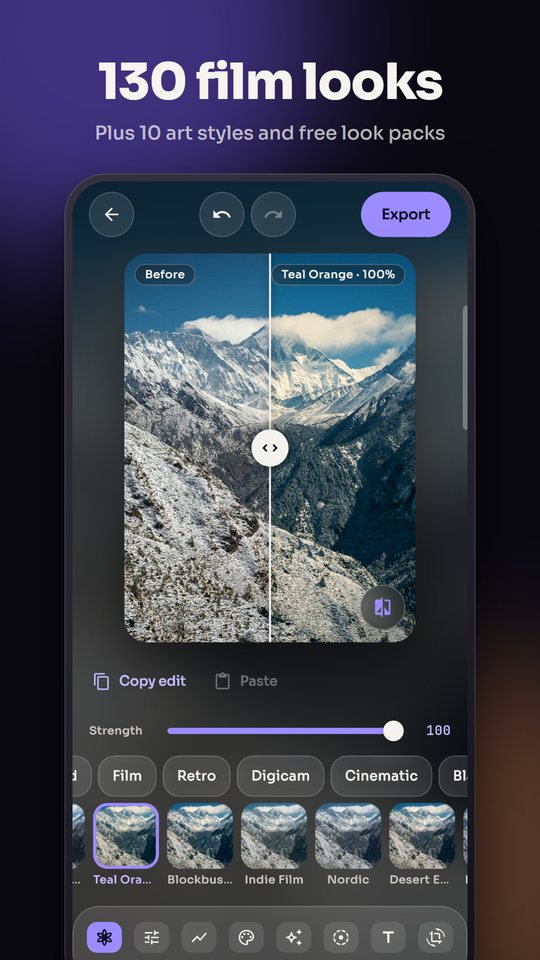
- Open Fotaro and tap Edit a photo, then pick your photo.
- Open Looks and browse a group, for example film or cinema. Each look shows on your own photo, so you can compare quickly.
- Use the strength slider. Most film looks are best between 50% and 80%.
- Fine-tune in the editor: curves, the HSL mixer, split toning, grain, halation and glow are all there if you want to push one ingredient further.
- Save. Your original stays untouched.
Fotaro's camera can also show film looks live while you shoot, in photo, video and cinema modes, so you can see the mood before you press the shutter.
Make a set of photos look like one roll
A single film photo is nice; a whole set that looks like it came from one roll is what makes an Instagram profile or an album feel planned.
- Use the same look on every photo of the set, then adjust only exposure and warmth per photo.
- Shoot the set in similar light, for example all in the late afternoon.
- Add the same amount of grain to all of them.
Common mistakes
- Too much fade. Blacks that are lifted too far make a photo look washed out instead of vintage.
- Grain on a tiny, compressed photo. Grain survives compression badly. Export at full size.
- Orange skin. Warm looks can turn skin orange. Pull back the orange saturation in the HSL mixer.
- Every photo, every look. Film looks need a calm, real moment. A screenshot of a menu will not become art.
The short version
Film is soft highlights, faded blacks, colour with character, grain and a little glow. Start from a well-made look, keep it subtle, and use the same look across a set. Your phone photos will start to feel like memories instead of files.
About Fotaro
Fotaro is a free photo and video editor for Android from Toolverse Labs: 130 hand-made film and cinema looks, with curves, HSL, grain, halation and glow to fine-tune them. No account, no watermark, and editing runs on your phone.
Fotaro is free on Android: no account, no watermark, and editing runs on your phone.
Get it on Google Play