 Fotaro
How to Remove a Photo Background for Free on Android
Clean cutouts for product photos, profile pictures and stickers, made on your phone, without uploading your photos anywhere.
A cutout, the subject without its background, is one of the most useful edits there is. Small sellers need product photos on clean white. Job seekers want a profile photo without a messy room behind them. Creators want themselves on a colourful background for a thumbnail, or a sticker of their dog.
Ten years ago this took Photoshop and patience. Today your phone can do it in seconds. This guide covers how to take a photo that cuts out well, how to remove the background, and how to finish the cutout so it looks professional.
Take a photo that is easy to cut out
Background removal works by finding the edge between the subject and everything else. Make that edge easy to find:
- Contrast. A dark object on a light background, or the other way round. A white mug on a white table is hard.
- Distance. Move the subject away from the wall. A gap behind it gives a softer, simpler background.
- Even light. Daylight from a window, not one harsh lamp. Hard shadows on the table can be mistaken for part of the object.
- The whole subject in frame. Do not cut off the bottle cap or the top of the head; leave a little space around it.
- Sharp focus. Tap on the subject. Blurry edges make blurry cutouts.
Hair, fur, glass and lace are the hardest. They can work, but expect to check the edges.
Step 1: remove the background
Most modern tools find the subject automatically. You pick a photo, wait a moment, and the background becomes transparent.
Then zoom in on the edges. Look for:
- Bits of background left between the arm and the body
- Parts of the subject that were removed by mistake, such as a thin strap or a bottle neck
- A halo of the old background colour around hair
A good tool lets you brush areas back in or out by hand. Spend thirty seconds here; it is the difference between amateur and clean.
Step 2: choose what goes behind
A transparent cutout is only the start. What you put behind it decides how the photo is used:
- Plain white or light grey for marketplaces and online shops. Many sellers' guidelines ask for a white background on the main photo.
- A brand colour for Instagram posts and product cards.
- A blurred version of the original background for a portrait look, like a phone's portrait mode but adjustable.
- A new scene for fun edits, collages and thumbnails.
Step 3: finish the cutout
These small touches make a cutout look placed rather than pasted:
- Shadow. A soft shadow under a product grounds it. Without it, objects seem to float.
- Outline. A white outline turns a cutout into a sticker, popular for thumbnails and stories.
- Matching light. If the new background is warm, warm up the subject a little too.
- Space. Leave room around the subject; do not let it touch the edges of the frame.
Many photos at once
If you sell online, you rarely have one photo. You have twenty products, each from three angles. Doing them one by one is tiring, and the backgrounds end up slightly different.
Batch background removal applies the same background, the same shadow and the same size to every photo, so your catalogue looks consistent.
How to do it in Fotaro
Fotaro is a free photo and video editor for Android. Its background remover finds the subject and lifts it off the background on your phone, so your photos are not uploaded to a server.
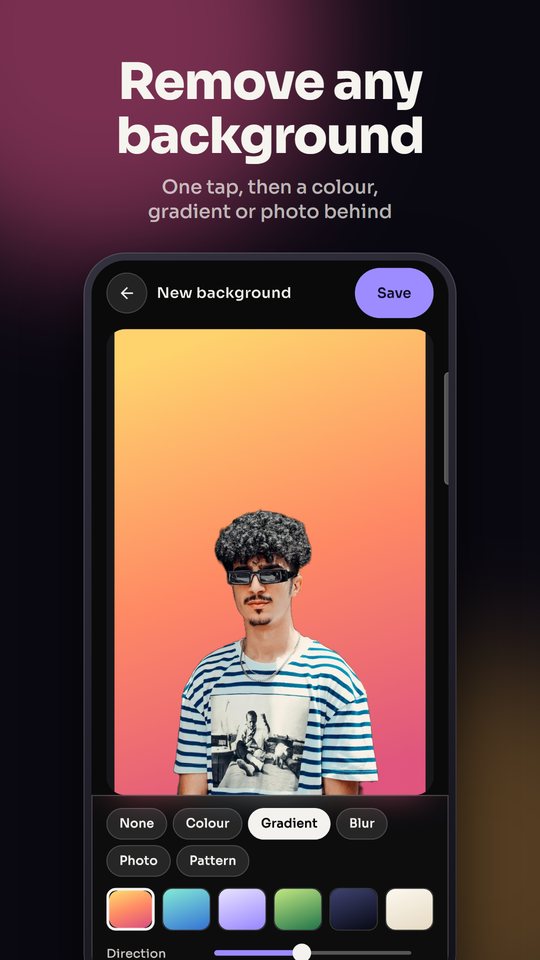
One photo:
- Open Fotaro and tap Remove background on the Home screen.
- Pick your photo. The subject is cut out in a few seconds.
- Check the edges. Fix edge lets you add back or rub out by hand; pinch to zoom in for hair and fingers.
- Choose what goes behind: transparent, a colour, a blurred background or a new photo.
- Add a shadow, an outline or stickers if you like, then save. A transparent cutout saves as PNG.
Up to 20 photos at once:
- In Remove background, pick several photos (up to 20).
- Each one is cut out on the phone. Choose what goes behind them all, and whether to keep each photo as taken or make it square and centred, which suits shop listings.
- Tap any photo to fix its edge by hand, then save them all to your gallery.
The same tool can do more with a cutout: Double exposure blends two photos into one, as on film, and you can light or blur only the person or only the background.
Common problems and fixes
- Part of the subject disappeared. It was too similar in colour to the background. Brush it back in, or retake the photo on a contrasting background.
- A grey halo around hair. Use a background colour close to the original, or add a slight blur to the new background so the edge blends.
- The product looks flat. Add a soft shadow and slightly raise contrast on the subject.
- Edges look jagged when posted. Export at full size; chat apps compress small images heavily.
The short version
Shoot on a contrasting background with even light, let the phone find the subject, check the edges, then pick a background that fits where the photo is going. Add a soft shadow. For a shop, do the whole set in one batch so every photo matches.
About Fotaro
Fotaro is a free photo and video editor for Android from Toolverse Labs: it removes the background from one photo or up to 20 at once, with new backgrounds, shadows, outlines and stickers. No account, no watermark, and editing runs on your phone.
Fotaro is free on Android: no account, no watermark, and editing runs on your phone.
Get it on Google Play